
A clicking drive turns a normal computer problem into a clock problem. Mechanical Hard Drive Recovery is not about trying every trick you saw online; it is about stopping the drive before a small failure becomes a scratched platter, burned board, or lost family archive. The first safe move is simple: power it down, unplug it, and do not keep testing it. A clicking hard drive often points to trouble with the read/write heads, motor, firmware area, or the surface that stores your files. Some issues are harmless enough to check from the outside, but opening the case at home is where many recoverable drives become expensive lessons. For U.S. users who keep tax files, client folders, school photos, or small-business records on older desktop drives, this guide takes a plain path: what clicking means, what you can check safely, when professional data recovery is worth it, and how to protect the next drive before it fails. For broader technology recovery stories, the same rule holds: act early, stay calm, and stop making the damage worse.
Hard Drive Recovery Starts With Stopping the Damage
The first few minutes matter more than most people think. A drive that clicks once and then settles may have a power or connection problem. A drive that clicks in a repeated rhythm is a different animal. That sound often means the internal parts are failing to read their target area, so the drive keeps resetting and trying again. Each restart can make the next attempt harder.
Why the click is a warning, not a diagnosis
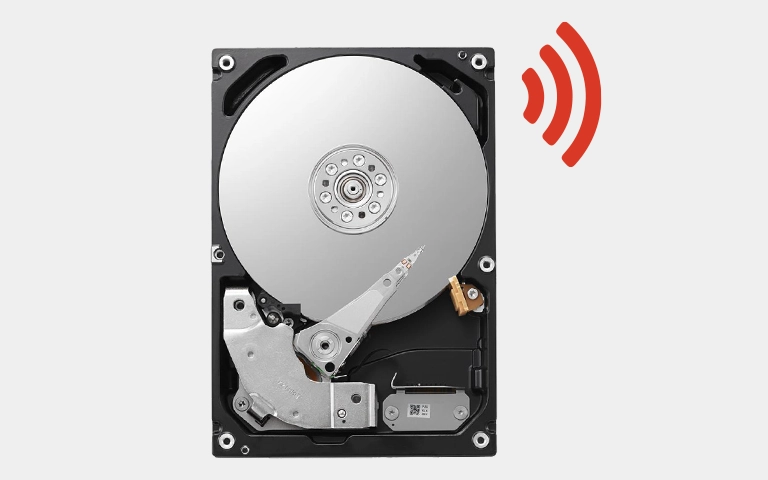
A clicking hard drive is not giving you a clean answer. It is giving you a warning. The sound can come from heads searching for position, a spindle that cannot hold speed, firmware trouble, impact damage, or weak power reaching the device.
That is why the worst advice is also the most tempting: “Try one more boot.” One more boot feels harmless because nothing dramatic happens on the outside. Inside the drive, a head assembly may be sweeping over fragile platter surfaces while the motor keeps trying to recover control.
The safer move is boring. Turn it off. Remove the drive from use. Write down what happened before the noise started, such as a drop, power surge, Windows freeze, macOS beach ball, or a failed file copy. That short timeline helps a lab or technician decide whether the case looks like mechanical drive failure, board trouble, or a file system issue.
What you should never try at home
Do not freeze the drive. Do not tap it. Do not open the lid on a kitchen table. Old internet stories make those tricks sound clever, but modern drives store far more data in tighter spaces than the drives people were “fixing” twenty years ago.
The freezer trick is especially bad because moisture can form when the drive warms again. That does not help metal, heads, platters, or tiny filters. It turns a fragile storage device into a wet storage device.
Opening the drive is worse. Dust that looks harmless in a room can be large enough to interfere with the head and platter gap. Recovery companies warn that a clean environment matters because small particles can damage the disk surface during operation. If the files matter, the lid stays shut.
Safe Checks Before You Call a Recovery Lab
There are a few checks you can make without gambling the data. The key is to test the things around the drive, not the failed mechanism inside it. Cables, ports, enclosures, and power bricks fail all the time. A bad USB adapter can make a healthy disk behave like a dying one.
Rule out power and connection problems first
Start with the simplest outside checks. Use a known-good cable. Try a different USB port. If it is a desktop internal drive, test with another SATA cable and another power lead from the power supply. Do not keep repeating the test if the clicking continues.
External desktop drives deserve extra suspicion. Many 3.5-inch drives depend on a separate power adapter. A weak adapter can make the drive spin, click, stop, and try again. That sounds like internal damage, but sometimes the drive is starving for steady power.
Still, there is a line. If the drive clicks in the same pattern after one careful cable or power swap, stop. A single controlled check is useful. Ten restarts are not testing; they are wear.
Decide whether software recovery is safe
Software recovery tools are only safe when the drive is stable enough to read. If the disk mounts, copies files at a normal pace, and makes no odd sound, a careful clone can help. If the disk clicks, vanishes, freezes the computer, or copies one file every few minutes, software can make the case worse.
The better path is to clone before scanning. Scanning a failing disk directly forces it to read bad areas over and over. A clone gives you a second target, so file repair work happens on the copy, not the failing original.
Here is the blunt test: if the drive sounds wrong, do not run repair commands. Tools like CHKDSK or Disk Utility repair can change file structures while the hardware is unstable. That may help a healthy disk with a small file error. On a failing mechanical disk, it can bury the files you wanted back.
When Professional Data Recovery Makes Sense
Professional help is not always needed. If you have a current backup, replace the drive and move on. If the drive holds the only copy of business records, wedding photos, legal files, school projects, or client work, the math changes fast. Paying for evaluation can be cheaper than turning a mild case into a severe one.
What a good lab does differently
A lab does not begin by browsing your folders. It starts by stabilizing the hardware. That may mean matching donor parts, working with firmware, imaging the platters with controlled tools, or reading around damaged areas in a planned order.
Professional data recovery is also less dramatic than people expect. The best work is careful and slow. A technician may image the most readable zones first, skip unstable sections, and return to them later. That order matters because a failing drive may only have a limited number of good reads left.
A cleanroom is not magic, but it protects the work. If heads need replacement, the drive must be opened in a controlled space. A good U.S. lab should explain the likely failure type, give a written quote after evaluation, and avoid promising 100% results before seeing the drive.
How to choose without getting trapped
Look for clear pricing stages, a “no data, no fee” style policy where available, and a real evaluation process. Avoid any service that tells you to keep trying software first after you described repeated clicking. That advice protects their sales funnel, not your files.
Ask direct questions:
- Will you image the drive before file extraction?
- Do you handle head swaps in a cleanroom?
- Will you return the original drive?
- Can I approve the file list before payment?
- Do you encrypt or isolate customer data during the job?
The counterintuitive part is that the cheapest first attempt can become the most expensive route. A local repair shop may be great for laptop screens and battery swaps. That does not mean it should open a clicking hard disk. For mechanical drive failure, the first hands inside the drive should be the right ones.
Preventing the Same Panic Next Time
A clicking drive feels sudden, but data loss usually starts earlier. People keep one copy of everything because the drive has worked for years. Then it makes a sound, disappears from the computer, and all those quiet years stop mattering.
Build a backup habit that matches real life
Backups fail when they depend on memory. Nobody wants to plug in a drive every Friday night forever. Set up a system that runs with little effort: one local backup for fast restores and one cloud or off-site copy for disasters.
CISA gives plain advice that fits home users and small businesses: back up data often to lower the risk of permanent loss, using an external drive or a trusted cloud service when data is stored locally. That sounds simple because it is. The hard part is making it automatic.
For a family PC in Ohio, that might mean Windows File History to an external drive plus a cloud backup for photos. For a freelance designer in Texas, it might mean a local Time Machine disk plus encrypted cloud storage for client files. The right setup is not the fanciest one. It is the one you will keep using.
Retire old drives before they choose the day
Hard drives do not earn loyalty. If a drive is older, louder, slower, or showing bad sectors, treat it like a warning light. Move the data while the drive still behaves.
This is where many people make the same mistake. They buy a new computer but keep the old external drive because it “still works.” That old drive then becomes the only home for ten years of files. Age alone does not kill every disk, but age plus one copy is a poor bet.
Use external drive backup checklist for routine planning and SSD versus HDD buying guide when deciding what should store daily work. Keep mechanical drives for bulk storage if you want, but do not make one aging disk the only place a file exists.
Conclusion
Clicking sounds are not a challenge to beat with tricks. They are a sign to slow down, protect the drive, and choose the next move with care. The safest path is simple: shut the disk off, check only outside causes, avoid repair software on unstable hardware, and get a serious evaluation when the files matter. Mechanical Hard Drive Recovery works best when the damage is not made worse by panic. That is the part you control. A drive can fail without asking, but your response does not have to fail with it. Build backups, retire tired disks early, and treat strange sounds like smoke from an outlet. You do not keep plugging it in to see what happens. You cut power, protect what matters, and fix the weak point before it spreads.
Frequently Asked Questions
What should I do first when my hard drive starts clicking?
Power it down and unplug it. Do not keep restarting the computer. Check the cable, port, or power adapter once if the drive is external, then stop if the clicking continues. Repeated power cycles can make a recoverable case harder.
Can software recover files from a clicking hard drive?
Only if the drive is stable enough to read without freezing, vanishing, or making odd sounds. A clicking hard drive should not be scanned directly. If software is used, the safer method is to clone the disk first and work from the clone.
Is a clicking external drive always dead?
No, but it should be treated as unsafe. A weak power adapter, bad cable, or faulty enclosure can cause strange behavior. Try one known-good cable or power source. If the same clicking returns, stop testing and protect the drive.
How much does professional data recovery cost in the USA?
Costs vary by damage, drive size, parts, and lab process. Simple logical cases cost less than head swaps or platter damage. Many labs offer evaluation before a final quote. The best question is not the lowest price; it is whether the lab can avoid added damage.
Can I open a hard drive myself to fix the clicking?
No, not if the files matter. Opening a mechanical disk outside a controlled space exposes the platters to dust and handling risk. Even a small mistake can damage the surface where your data lives.
Why does my hard drive click after being dropped?
A drop can damage the heads, spindle, parking ramp, or platter surface. The clicking may be the drive trying and failing to find the right position. Do not shake or tap it. Power it off and get an evaluation if the data matters.
Should I put a clicking hard drive in the freezer?
No. Freezing can create moisture and does not fix modern drive failures. The old freezer myth came from older hardware stories and lucky edge cases. It is more likely to add risk than save files.
What is the best way to prevent data loss from drive failure?
Keep more than one copy. Use an automatic local backup and a cloud or off-site copy. Test restores sometimes, especially for work files. Replace older drives before they become noisy, slow, or unstable.